How to Root a Motorola G6 Device
In this post I’ll explain how to root a Motorola G6 device.
Begin
Enable developer mode on device.
To enable follow this steps:
1 - Go to Settings of device
2 - Scroll down and select System
3 - Select About phone
4 - Scroll down and tap 7 times on Builder number
A message “You are now a developer” will be displayed.
Now in the follow path there will be a Developer options menu: Settings > System > Advanced > Developer options
Unlock bootloader
USB Drivers
Install drivers for your Motorola G6 on your computer. You can download the necessary USB drivers from the official Motorola website.
SDK Platform Tools
Install SDK Platform Tools on your computer. You can download it from the official Android developer website.
-
Extract the downloaded ZIP file to a convenient location on your computer.
-
Open a command prompt or terminal window in the extracted folder.
-
Connect your Motorola G6 to your computer using a USB cable.
-
In the command prompt or terminal, type the following command to check if your device is recognized:
adb devices
Fastboot Mode
Put your device into Fastboot mode by following these steps:
- Power off your Motorola G6.
- Press and hold the Volume Down button and the Power button simultaneously until the Fastboot menu appears.
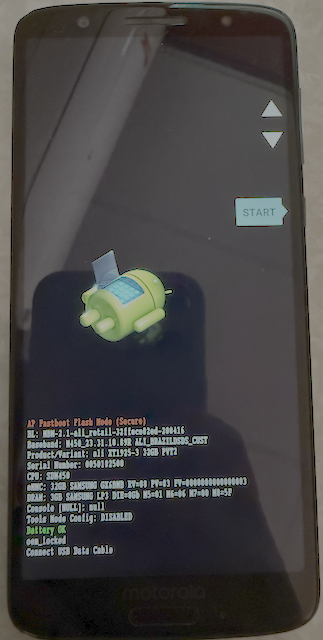
Unlocking
- In the command prompt or terminal, type the following command to unlock the bootloader:
fastboot oem get_unlock_data -
Copy the output from the command and paste it into a text file. This will be your unlock code.
-
Visit the Motorola Unlock Bootloader page and follow the instructions to unlock your bootloader using the code you obtained.
- After receiving the unique code, go back to the command prompt or terminal and type the following command to unlock the bootloader:
fastboot oem unlock [your unlock code] - Once your bootloader is unlocked, you can proceed to root your device.
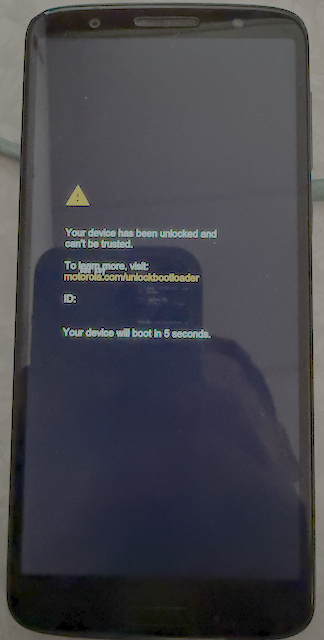
Root device
Magisk
-
Download Magisk apk from github
-
Change the extension of the downloaded Magisk apk file from
.apkto.zip. -
Copy the Magisk zip file to your device’s flash card
-
Go to TWRP Recovery step
TWRP Recovery
-
Download the TWRP recovery image for Motorola G6 from here
-
Rename the downloaded TWRP image file to
twrp.imgand move it to the folder where you have the ADB and Fastboot tools. -
Put device into Fastboot mode.
- In the command prompt or terminal, type the following command to flash TWRP recovery:
fastboot flash recovery twrp.img -
Once the flashing process is complete, use the volume buttons to navigate to the “Recovery Mode” option in the Fastboot menu and press the Power button to select it. This will boot your device into TWRP recovery mode.
- Wipe data in TWRP.
- Go to Wipe > Format Data (confirm with yes)
- After formatting, press home button of device
- Click on reboot > Recovery
- In TWRP, go to Install and select the Magisk zip file you copied earlier.
- Swipe to confirm the installation.
Now reboot your device into the system.
Open Magisk Manager to complete the setup. To ensure proper functionality, grant Magisk Manager the necessary permissions and follow any on-screen instructions.
Download root checker from the Play Store to verify if your device is successfully rooted.
✌🏾